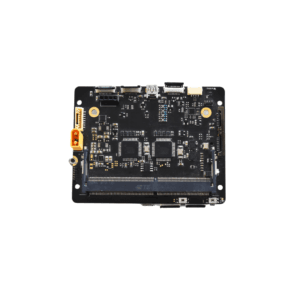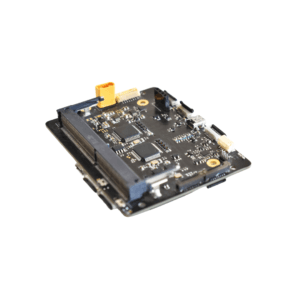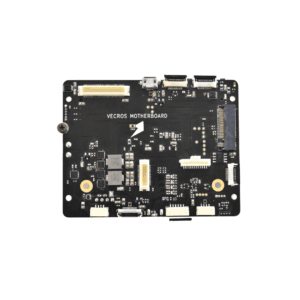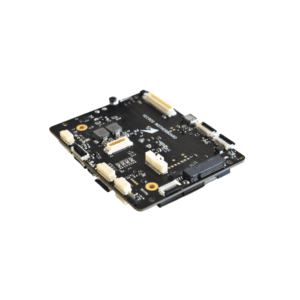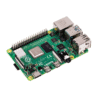


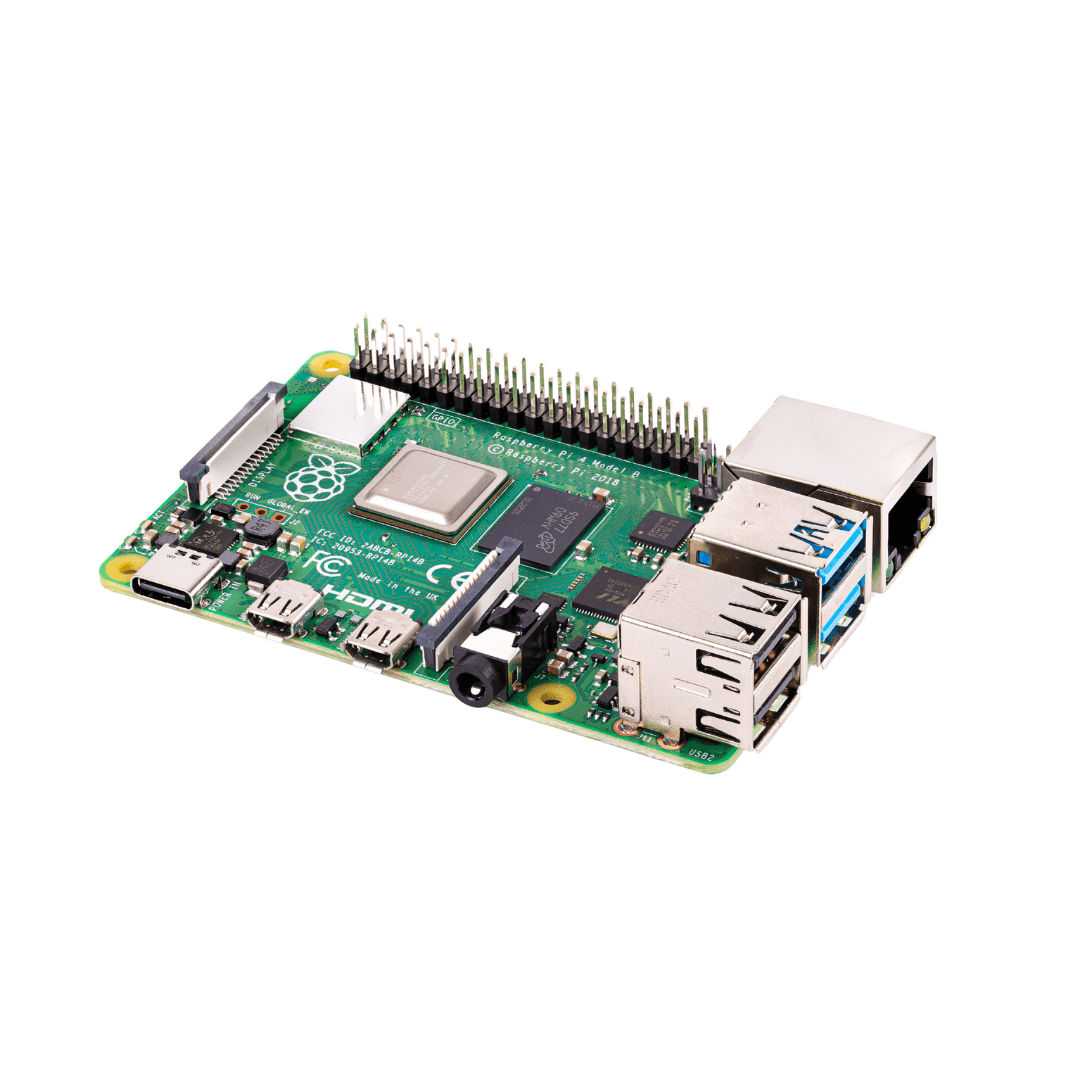

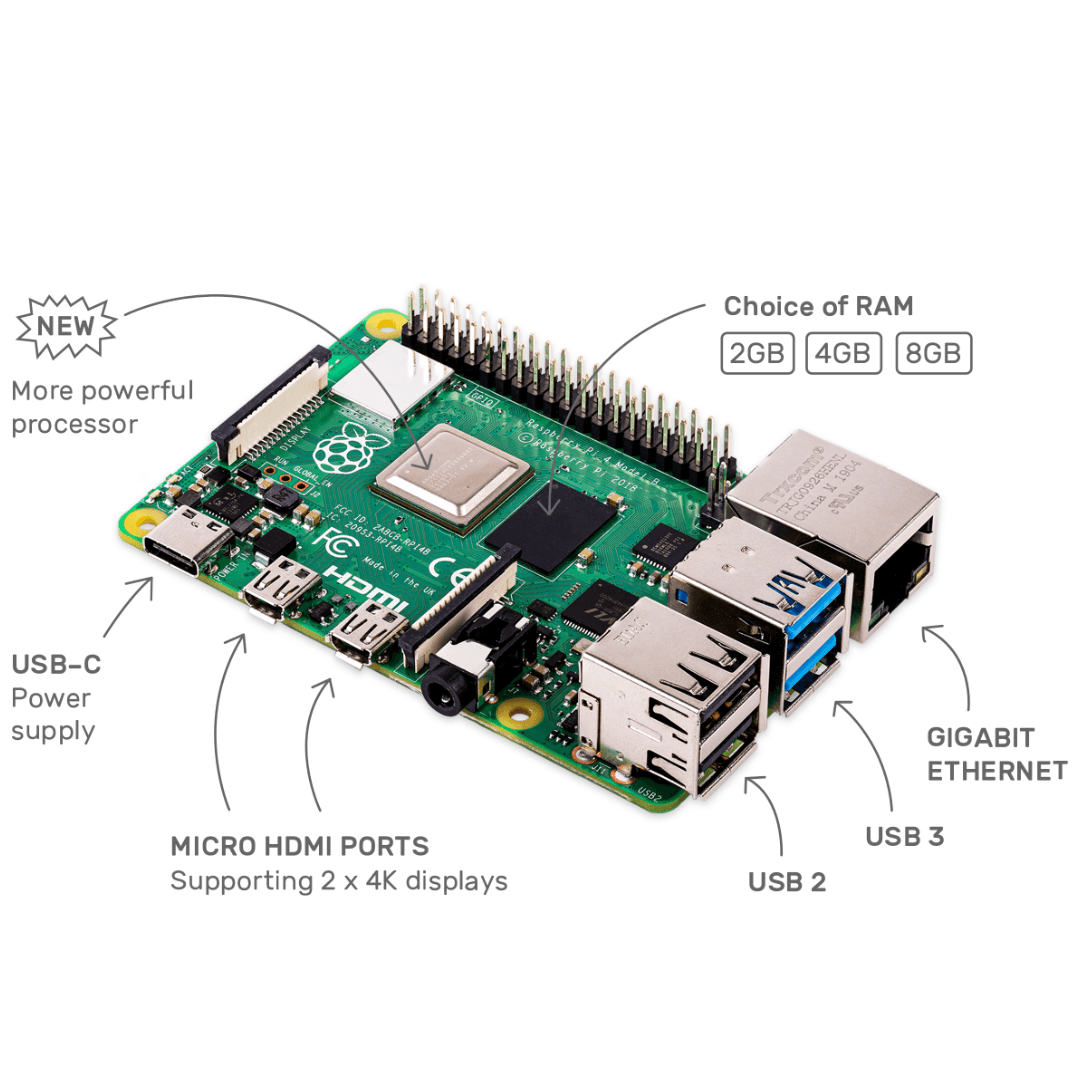
Raspberry Pi 4 with 4 GB – RAM
₹8,100.00 excl. GST
Available in stock
M.R.P.: ₹9,558.00 Incl. GST
Description
Raspberry Pi 4
Your tiny, dual-display,?desktop computer
?and robot brains, smart home hub, media center, networked AI core, factory controller, and much more
Dual displays 4K output
We’ve listened to your feedback: with Raspberry Pi 4, you can run two monitors at once ? and in 4K, too!
Your new desktop computer
The speed and performance of the new Raspberry Pi 4 is a step up from earlier models. For the first time, we’ve built a complete desktop experience. Whether you’re editing documents, browsing the web with a bunch of tabs open, juggling spreadsheets or drafting a presentation, you’ll find the experience smooth and very recognisable ? but on a smaller, more energy-efficient and much more cost-effective machine.
Silent, energy-efficient
The fanless, energy-efficient Raspberry Pi runs silently and uses far less power than other computers.
Fast networking
Raspberry Pi 4 comes with Gigabit Ethernet, along with onboard wireless networking and Bluetooth.
USB 3
Your new Raspberry Pi 4 has upgraded USB capacity: along with two USB 2 ports you’ll find two USB 3 ports, which can transfer data up to ten times faster.
Get started
Check out our step-by-step guide:
How to set up your Raspberry Pi 4 for the first time
You will need
- A 15W USB-C power supply ? we recommend the official?Raspberry Pi USB-C Power Supply
- Micro SD card with Raspberry Pi OS installed (buy a pre-loaded SD card along with your Raspberry Pi, or install Raspberry Pi OS usingRaspberry Pi imager)
- A?keyboard?and?mouse
- Cables to connect to one or two displays via Raspberry Pi 4’s micro HDMI ports
Take it further
- Learn how to?configure, update, and navigate your Raspberry Pi once it’s set up
- Discover a whole range of?projects for your Raspberry Pi
- Read more detailed?documentation on configuring your Raspberry Pi
- Find out about?accessing your Raspberry Pi remotely
Your choice of RAM
We’re making different variants of the Raspberry Pi 4 available, depending on how much RAM you need ? 2GB, 4GB, or 8GB.
Software & OS
Raspberry Pi OS (previously called Raspbian) is the recommended operating system for normal use on a Raspberry Pi.
Raspberry Pi Imager is the quick and easy way to install Raspberry Pi 4 OS and other operating systems to a microSD card, ready to use with your Raspberry Pi.
Find help with installing Raspberry Pi OS on your Raspberry Pi in our online?Getting started guide.
You can browse basic examples to help you get started with some of the?software available in Raspberry Pi OS, find more detail?about Raspberry Pi OS, or read information on fundamental?Linux usage and commands for navigating the Raspberry Pi?and managing its file system and users.
Specifications
- Broadcom BCM2711, Quad core Cortex-A72 (ARM v8) 64-bit SoC @ 1.5GHz
- 2GB, 4GB or 8GB LPDDR4-3200 SDRAM (depending on model)
- 2.4 GHz and 5.0 GHz IEEE 802.11ac wireless, Bluetooth 5.0, BLE
- Gigabit Ethernet
- 2 USB 3.0 ports; 2 USB 2.0 ports.
- Raspberry Pi standard 40 pin GPIO header (fully backwards compatible with previous boards)
- 2 × micro-HDMI ports (up to 4kp60 supported)
- 2-lane MIPI DSI display port
- 2-lane MIPI CSI camera port
- 4-pole stereo audio and composite video port
- H.265 (4kp60 decode), H264 (1080p60 decode, 1080p30 encode)
- OpenGL ES 3.1, Vulkan 1.0
- Micro-SD card slot for loading operating system and data storage
- 5V DC via USB-C connector (minimum 3A*)
- 5V DC via GPIO header (minimum 3A*)
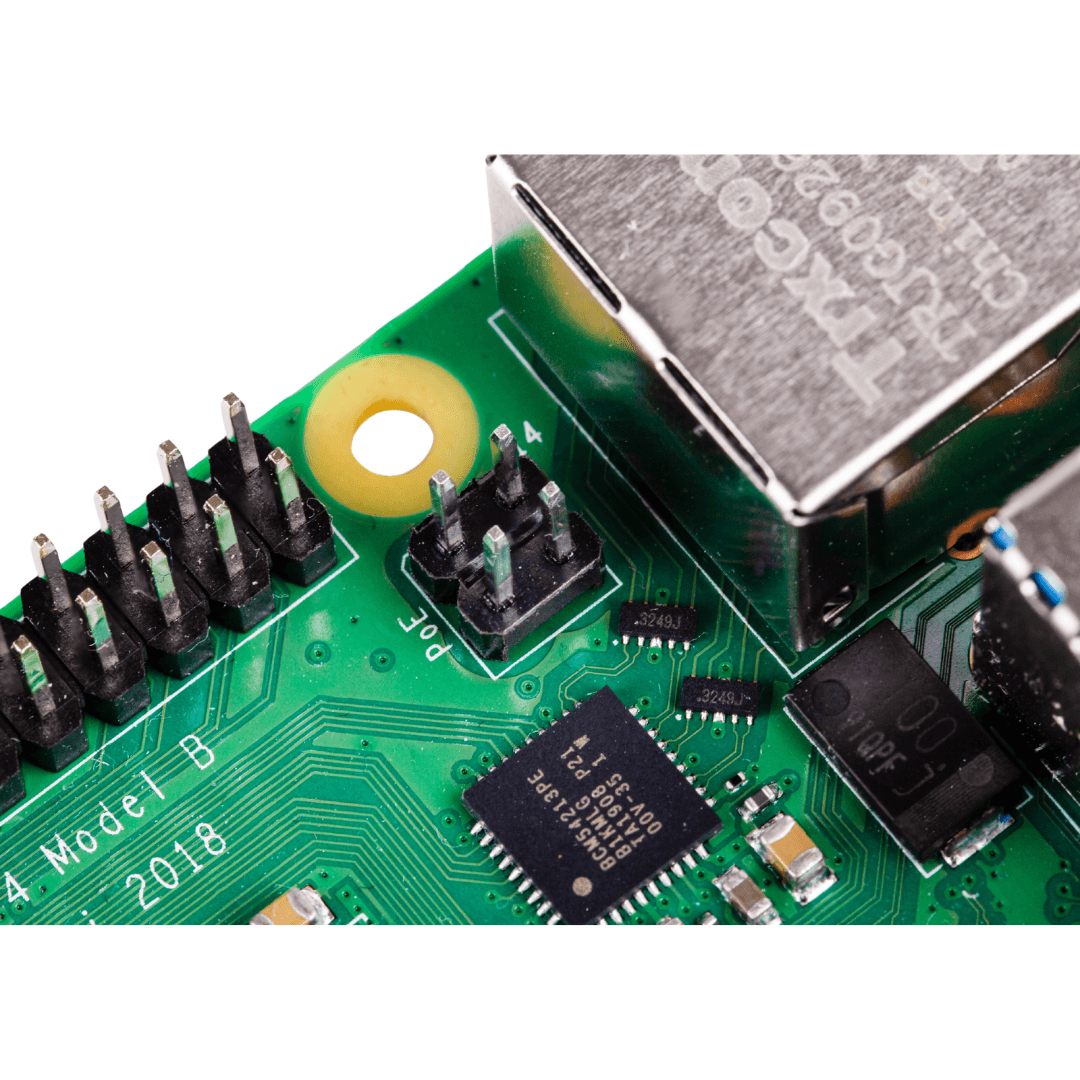
- Power over Ethernet (PoE) enabled (requires separate PoE HAT)
- Operating temperature: 0 – 50 degrees C ambient
* A good quality 2.5A power supply can be used if downstream USB peripherals consume less than 500mA in total.